Uncategorized
 Go Premium
How to create rollover effect similar to blog/portfolio thumbnails, Avada Theme

To create rollover effect similar to blog/portfolio thumbnails in Avada Theme using Avada Columns, you can follow these steps:
- Set Up the Columns and Background Image:
- Use the Avada Builder to create columns and set a background image for each column.
- Add CSS for the Hover Effect:
- Add custom CSS to achieve the hover effect where the text appears over the image.
Here’s a step-by-step guide:
Step 1: Create the Columns with Background Images
- Open the Avada Builder:
- Create or edit a page using the Avada Builder.
- Add a Container and Columns:
- Add a new container and insert columns as needed.
- Set Background Image for Each Column:
- Edit the column and go to the Design tab.
- Set the background image for the column.
Step 2: Add HTML Structure
- Add Title and Hover Text:
- Inside each column, add a title and a div for hover text.
<div class="hover-column">
<h2 class="hover-title">Title Here</h2>
<div class="hover-text">This is the hover text.</div>
</div>
Step 3: Add Custom CSS
- Navigate to Avada Options:
- Go to Avada > Options > Custom CSS and add the following CSS.
<span style="color: #3366ff;">.hover-column {
position: relative;
width: 100%;
height: 300px; /* Adjust height as needed */
overflow: hidden;
display: flex;
align-items: center;
justify-content: center;
text-align: center;
background-size: cover;
background-position: center;
}</span>

.hover-column .hover-title {
position: absolute;
color: white;
z-index: 2;
font-size: 24px;
font-weight: bold;
}

.hover-column .hover-text {
position: absolute;
top: 0;
left: 0;
width: 100%;
height: 100%;
display: flex;
align-items: center;
justify-content: center;
color: white;
background: rgba(0, 0, 0, 0.7);
opacity: 0;
transition: opacity 0.3s ease;
z-index: 1;
padding: 0 15px; /* Add left and right padding */
}

.hover-column:hover .hover-text {
opacity: 1;
}

.hover-column:hover .hover-title {
opacity: 0;
}
Step 4: Customize as Needed
- Adjust Dimensions: Modify the width and height of
.hover-columnto fit your design needs. - Fonts and Colors: Customize font sizes, colors, and background overlay colors in the CSS to match your site’s style.
Example Implementation in Avada:
- Add a Container and Columns:
- Create a container with multiple columns in the Avada Builder.
- Set Background Images:
- Edit each column to set the background image.
- Add HTML Content:
- Use a code block or custom HTML element to insert the HTML structure for titles and hover text within each column.
Final Result:
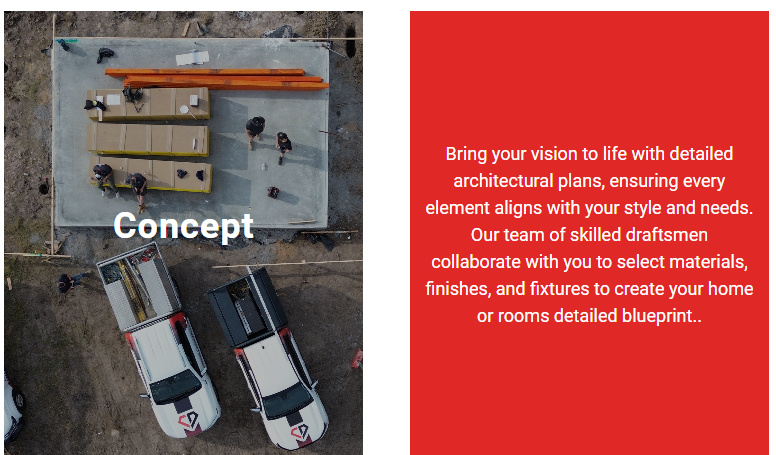
By following these steps, you can achieve a rollover effect similar to the Avada Theme for blog/portfolio thumbnails. This approach allows you to use Avada Columns and set background images, while customizing the hover effect to display text as desired.
Like this resource?
Download thousands of premium vector files for your projects.